Create a Dashboard
A dashboard is your personal view inside Reveal360. You can build as many dashboards as you need and fill them with the widgets that matter most to you.
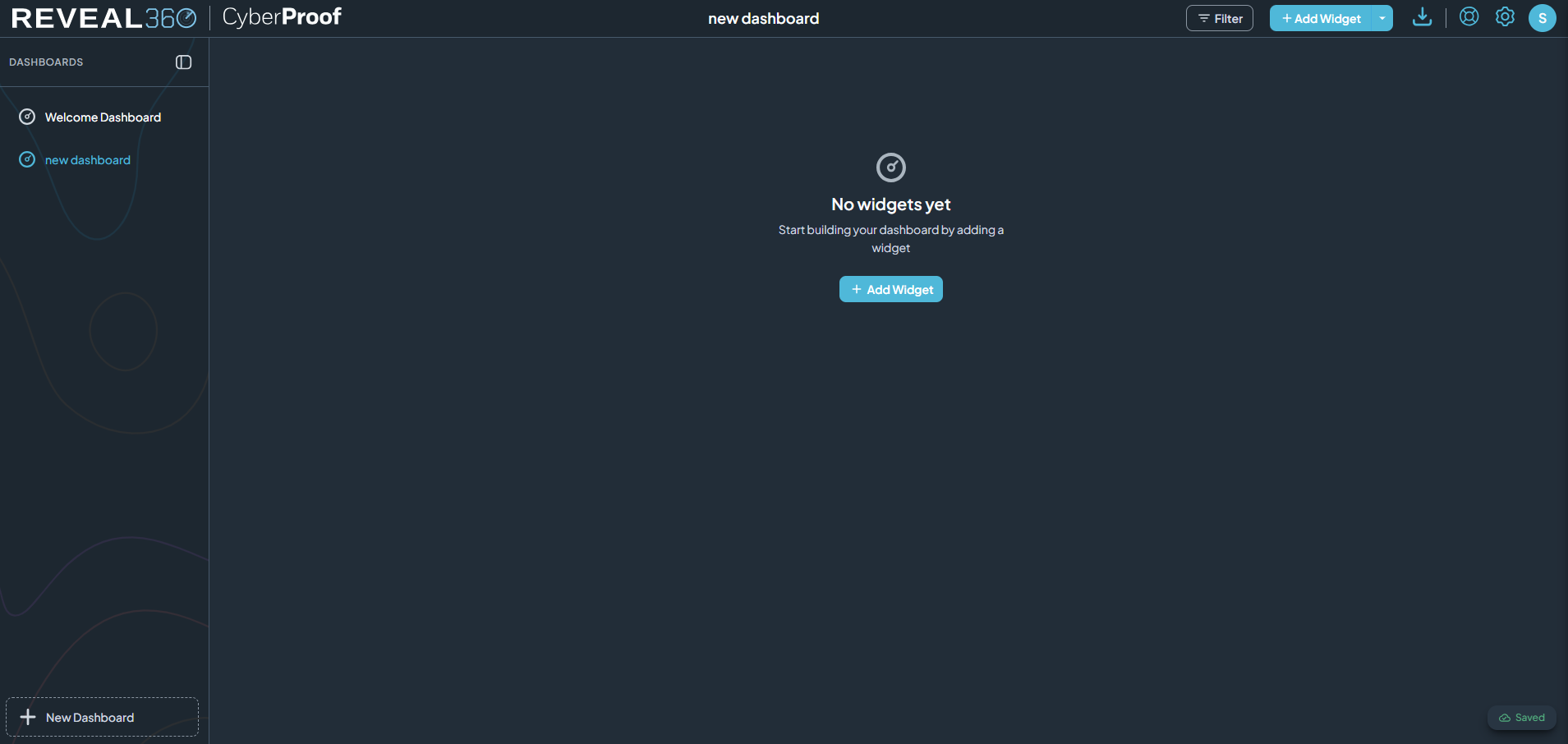
Step 1 — Open the New Dashboard button
In the left sidebar, click New Dashboard.
Step 2 — Choose how to create your dashboard
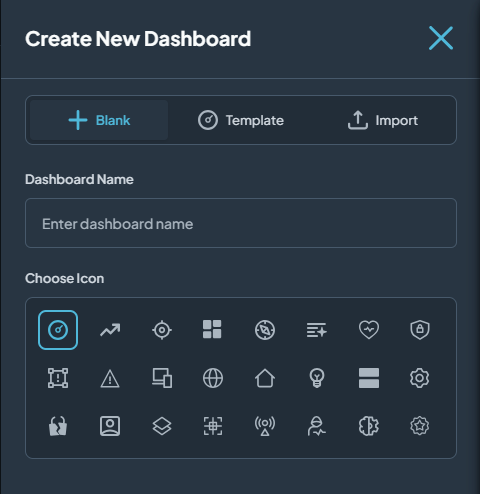
A panel opens with three options. Pick the one that fits your situation:
| Option | When to use it |
|---|---|
| Blank | You want to start fresh and build your own layout. |
| Template | You want a ready-made layout you can customise. |
| Import | You have a dashboard file (.json) from someone else. |
Option A — Blank
The Blank tab is shown in the screenshot above.
- Type a name in the Dashboard Name field.
- Pick an icon that represents this dashboard.
- Click Create Dashboard.
Option B — Template
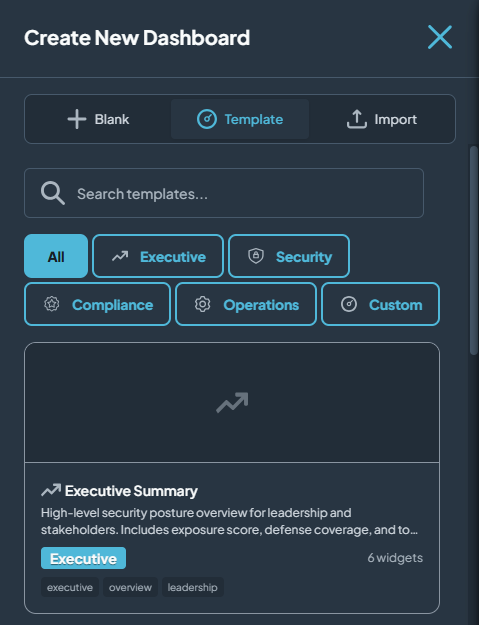
- Browse or search the gallery for a template you like.
- Click Use Template.
Option C — Import
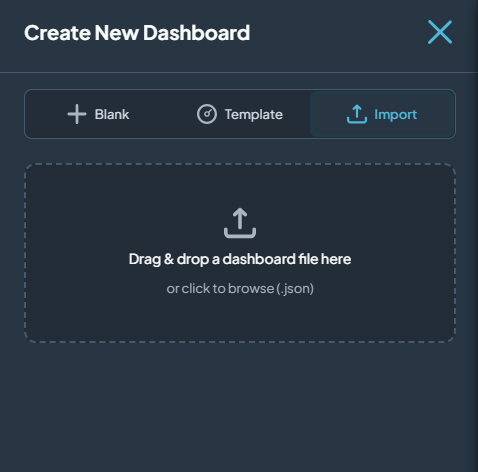
- Click the upload area and select your
.jsondashboard file. - Click Import Dashboard.
Step 3 — Start using your dashboard
Your new dashboard appears in the left sidebar. Click it to open it and begin adding widgets.
Tip: All changes to your dashboard are saved automatically.